HOW TO SET UP IPTV ON MAG DEVICES
Getting to Know MAG Devices
MAG devices are popular IPTV players because they are simple to use and easy to set up. They provide a straightforward interface, fast channel switching, and support for live TV, movies, and series.
If you already own a MAG device, you can connect your IPTV subscription by following the steps below.

If your MAG device does not allow you to enter an M3U link, contact our WhatsApp support with your MAC address and we’ll help you set up your IPTV subscription. This guide covers MAG 250, 254, 256, and similar devices.
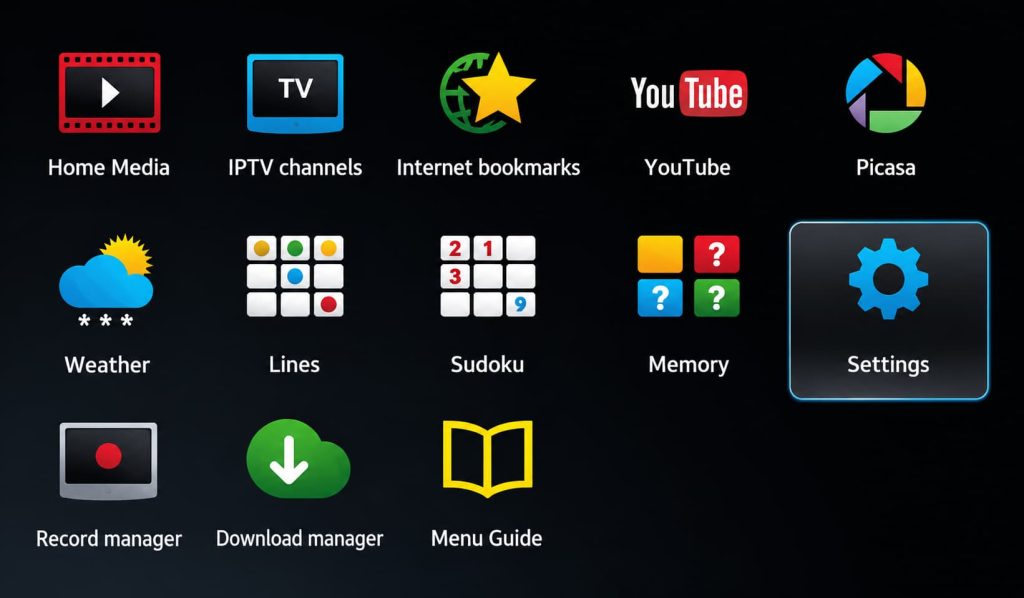
- Step 1: When your MAG device starts, the main screen will appear. Select Settings using your remote, or press SETUP/SET to open the settings menu.
- Step 2:
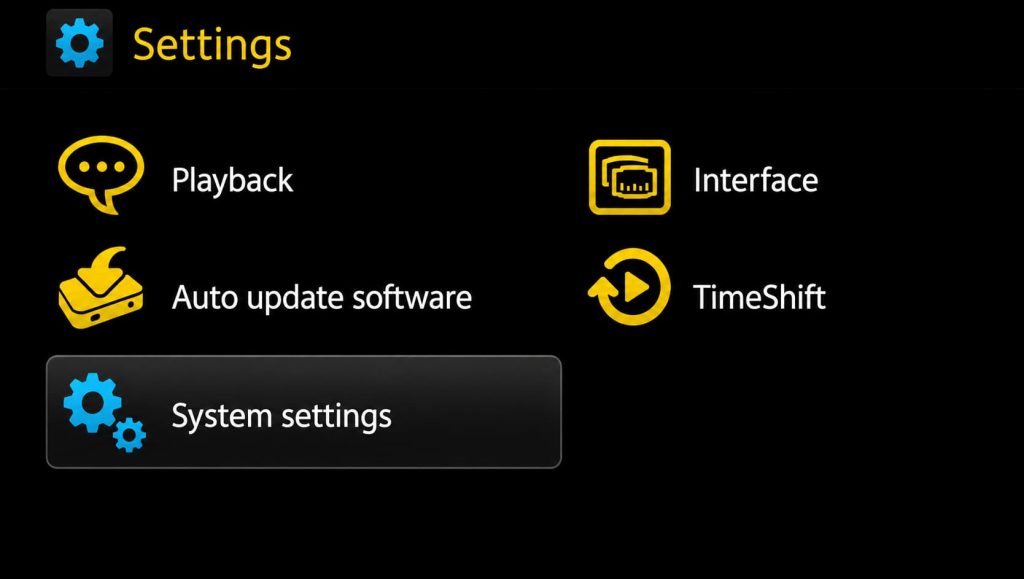
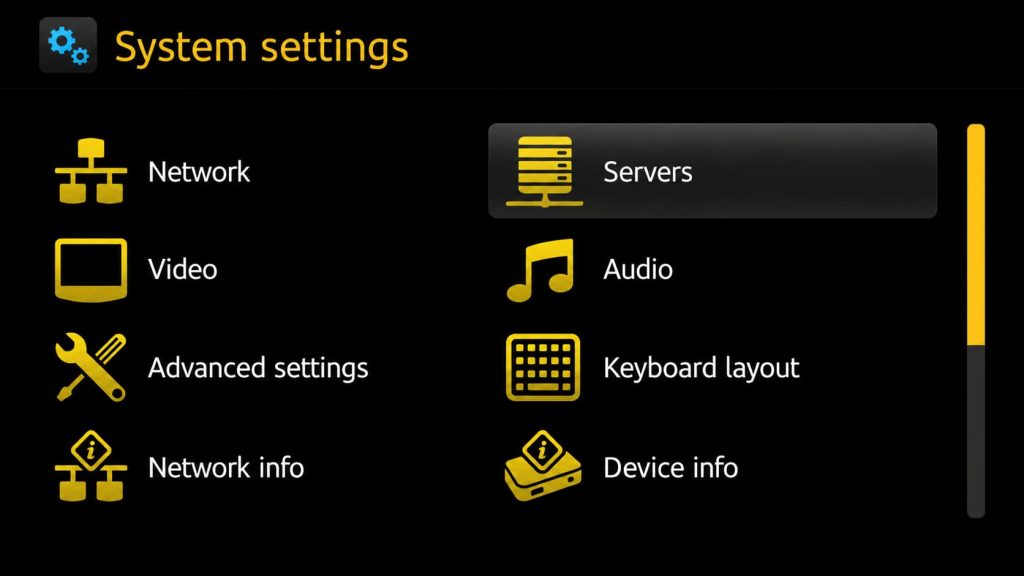
From Settings, select System settings, then open Servers.
- Step 3: Select “Servers” to open the server settings.
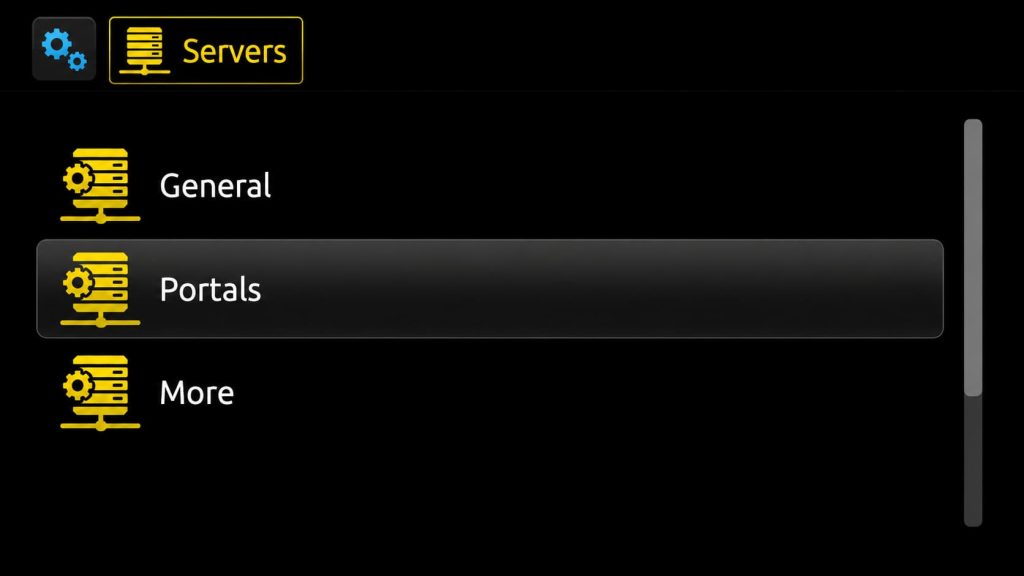
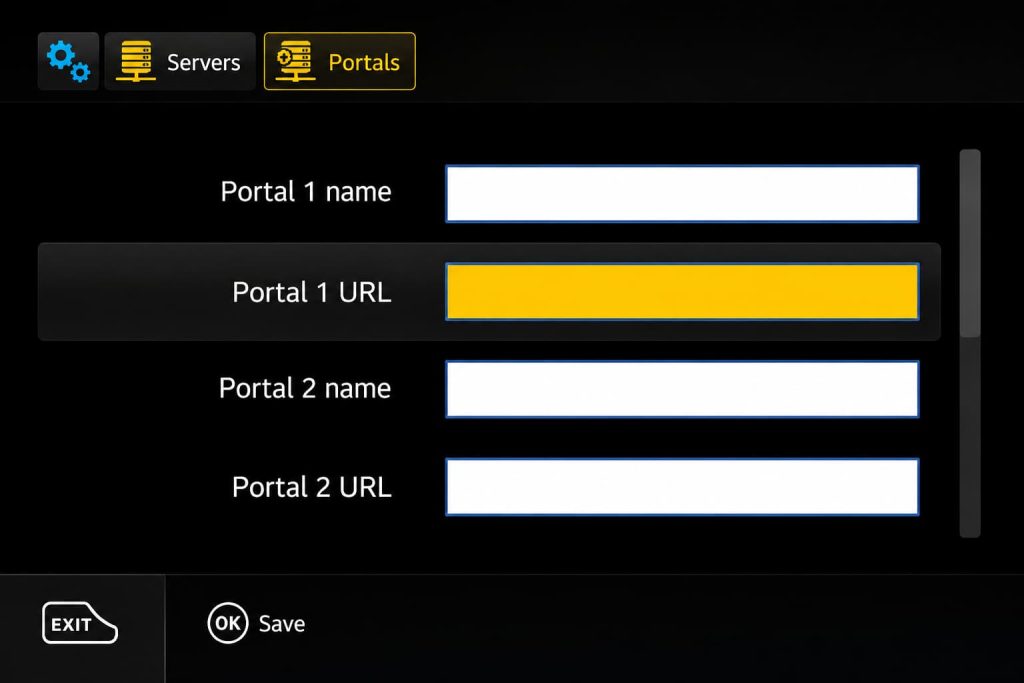
- Step 4: Select “Portals” to open the portal settings.
- Step 5: In “Portal 1 name”, enter a name for your IPTV service. Then, in “Portal 1 URL”, enter the Portal URL sent to you by email.
To set up your IPTV subscription on a MAG device, send us your MAC address via WhatsApp. We’ll activate your subscription remotely and send you the Portal URL to enter in the Portal 1 URL field.
- Step 6 – Once you’ve entered the required details, select “OK” to save your settings.
- Step 7 – Press “EXIT” on your remote to return to the main screen.
- Step 8 – Restart your MAG device and select “OK” when prompted to apply the changes.
- Step 9 – Once your device restarts, your IPTV subscription will be ready. Start watching your live TV channels, movies, and series.
Still have questions?
We’re here to help! Contact us on WhatsApp or get started now
VibeMaxTV provides live TV, movies, and series with HD and 4K streaming. Enjoy a simple experience with secure checkout and 24/7 customer support.
contact@VIBEMAXTV.com
Whatsapp Chat
Explore
Support
- Contact Us
- FAQ